Server Response Time is the heartbeat of your website’s speed and performance. It’s the time it takes for your web server to respond to a user’s request when they click on a link or type in your URL. Think of it as the digital concierge at the entrance of your website, responsible for greeting your visitors and guiding them through your content.
You might ask, “Sam, why is Server Response Time so critical?”
Well, good question.
A slow server response can lead to a multitude of issues. It affects not only user satisfaction but also plays a pivotal role in search engine rankings. As search engines like Google emphasize user experience, they consider server response time as a key factor in determining how well your site performs in search results.
Let me give you a typical example: so, you’re at a crowded airport, and there are two lines at security—one moving lightning fast and the other at a snail’s pace. Which one are you more likely to choose?
Well, don’t tell me… I already know your answer. 😊
Now guess what, your website visitors face the same dilemma I shared above. This is why you need to do everything within your power to make sure you learn how to reduce server response time in WordPress or get a WordPress speed optimization service from any trusted WordPress SEO Consultant or Developer.
That said, let me reiterate by saying a slow server response time can lead to a high bounce rate, which impacts your website’s user experience and SEO ranking. But it goes even deeper than that. Search engines, like Google, also consider server response time when ranking websites. They want to ensure that they’re directing users to websites that can provide a seamless experience. If your server response time is sluggish, your SEO ranking can suffer.
Now, you might wonder, “Why should I care about server response time?” To put it bluntly, your site’s speed is a make-or-break factor. Based on a considerable amount of research, I’ve found that for every additional 100 milliseconds of load time, online businesses may experience a 20% drop in traffic. That’s a significant loss for every fraction of a second your visitors are left waiting. Furthermore, slow-loading sites often rank lower on search engine results pages (SERPs), affecting organic traffic and discoverability.
In this comprehensive guide, we’ll delve deep into everything you need to know about server response time in WordPress. You’ll gain a clear understanding of what it entails, its significance and impact on your website, and why it should be a focal point in your optimization efforts. Moreover, I’ll try my best to equip you with actionable strategies and advanced techniques to drastically reduce server response time, ensuring your WordPress site runs at peak performance.
Whether you're a seasoned WordPress pro or just starting your online journey, optimizing server response time is essential for delivering a seamless, enjoyable experience to your visitors. Share on XWhat is Server Response Time?
Server response time, often referred to as Time to First Byte (TTFB), is the duration it takes for a web server to respond to a user’s request. This includes the time it takes for the server to receive the request, process it, and send the initial data back to the user’s browser. In simpler terms, it’s the waiting period users experience before any part of your web page begins to load.
Why You Need to Reduce Server Response Time in WordPress
Why does reducing server response time matter specifically for WordPress users? As one of the most popular Content Management Systems (CMS) worldwide, WordPress powers millions of websites. However, its flexibility and feature-rich environment can lead to extended server response times if not optimized correctly. In this guide, we’ll dive deep into WordPress-specific solutions to make your site lightning-fast. Whether you’re a seasoned WordPress pro or just starting your online journey, optimizing server response time is essential for delivering a seamless, enjoyable experience to your visitors.
This article will take you on a journey through the intricacies of server response time, exploring its role in site speed, SEO, and user engagement. Along the way, we’ll discuss practical strategies, optimizations, and recommended tools to help you achieve rapid server response times, enhancing your website’s overall performance, which inevitably improves your WordPress page loading speed.

How I reduced my server response time and increased PageSpeed score
Must Read: Unlocking $6000: A Blueprint for Successful Blogging Earnings in Nigeria
What is Initial Server Response Time in WordPress?
Speaking about initial server response time, it’s that pivotal moment when your server receives a request and quickly sends back the first bytes of data to be displayed. In essence, it’s your website’s first handshake with the user, setting the stage for the entire browsing experience.
A speedy initial server response time is a clear signal to visitors that your website means business. It indicates that your server is primed, responsive, and capable of delivering content swiftly. This not only enhances user satisfaction but also aligns with search engines’ preferences for fast-loading websites.
Long web server response times delay page loading speeds. Page Speed expects your server to begin responding to resource requests quickly to ensure a quick page load time. For each resource request, your server needs to begin… Share on XServer Response Time vs. Page Speed
Understanding server response time in WordPress goes hand in hand with comprehending page speed. These two aspects are like twins separated at birth—they’re closely related, but not quite the same.
Server response time is the starting point of your page’s journey to load completely. It’s like the sprinter at the starting blocks, ready to burst into action. Once the server response time is swift, the rest of the race—loading images, scripts, and content—becomes more efficient.
In contrast, page speed is the full marathon. It encompasses every element of your website’s performance. Faster server response time is the catalyst for an outstanding page speed score. Together, they ensure a smooth, seamless, and engaging user experience.
Common Factors Affecting Server Response Time
You see, when it comes to server response time, there are various critical factors in play. Understanding what influences server response time is the first step in your journey to optimize it for your WordPress website. Here, we’ll explore these key factors and highlight the specific challenges that WordPress websites may face in this context.
Let’s Analyze the Factors That Influence Server Response Time…
To improve your server response time in WordPress, it’s essential to have a grasp of the elements that shape this metric. Addressing these factors effectively can significantly enhance your page loading speed.
Server Configuration: The way your server is set up can either boost or hinder server response time. Elements such as server location, hardware, and software configurations all play a pivotal role.
Web Hosting: I beg to submit to you that the choice of web hosting service is absolutely crucial—it will either make or mar your blog. I should also tell you that shared hosting, while cost-effective, might lead to slower response times due to resource sharing. Opting for premium or managed WordPress hosting often results in better response times. However, for this blog, I currently make use of Interserver’s web hosting service and I haven’t really had any issues with server response time… in fact, my website scores high on PageSpeed, thanks to the GTmetrix image below.
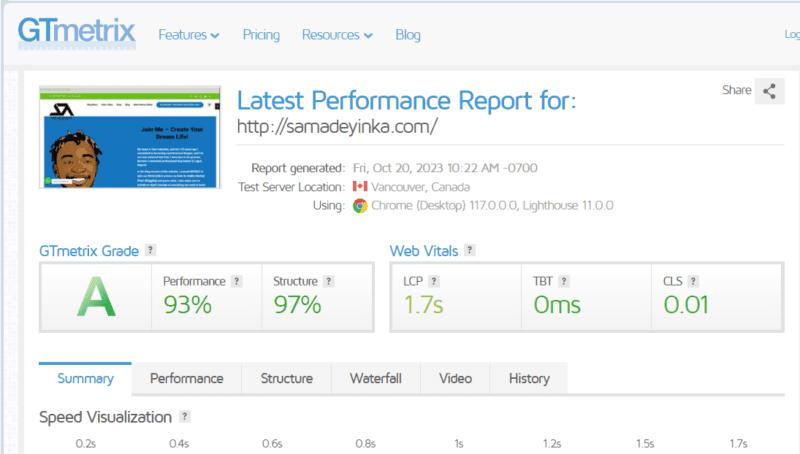
GTmetrix Page Speed Score
Let me also be honest with you… you might find it difficult to improve your page speed score just like I did above if you don’t know how to 1) partner with your web hosting company, 2) use and merge the best WordPress caching plugins, 3) use Cloudflare to complement and optimize your website speed and performance, and lastly, how to use .htaccess to effectively jump up your website’s performance.
That said, shared hosting is not exactly the best, especially if you’d love your website to be blazing-fast. However, you can improve your server response time, even if you are on a shared web hosting just like my site (this website).
By the way, you can watch the video below to understand PageSpeed Insight, why and how to improve your website and get a high page speed score.
[]
Server Load: Overloading your server with too many requests or resource-intensive tasks can be a major cause of slow response times. Efficiently managing server load is key to maintaining optimal performance.
Content Delivery Network (CDN): CDNs act as accelerators for your website. By distributing your site’s content across multiple servers globally, they can effectively reduce the physical distance between your server and your site visitors, resulting in quicker response times.
Caching Mechanisms: Caching plugins and server-side caching can help minimize server response time. These mechanisms store and serve pre-generated pages, reducing the need to process dynamic content for each visitor. Plugins like W3 Total Cache, WP Super Cache, or WP Rocket (I use this on each of my blogs) are highly recommended.
Specific Challenges in WordPress Server Response Time…
While WordPress is a versatile platform for websites and blogs (see why I love and use WordPress), it comes with particular challenges when it comes to server response time optimization:
Complexity: WordPress sites often incorporate a variety of themes and plugins, adding functionality but potentially increasing server load and response times. Opting for lightweight, well-coded themes and plugins is a wise choice. And… if I were you, I wouldn’t go crazy on installing too many plugins, which might wound up causing slow response times.
Database Queries: WordPress’s dynamic content is a crucial feature, but extensive database queries can slow down server response times. Optimizing your database and using plugins that minimize queries can alleviate this issue.
Media Content: Visual elements like images and multimedia are essential for an appealing website. However, large media files can strain server resources. Properly sizing and compressing images can significantly improve your site’s response time. I will shed more light on this later.
Comprehending these factors and recognizing the unique challenges in WordPress server response time provides a solid foundation for implementing effective strategies and optimizations. Your journey to a faster, more responsive WordPress site begins by identifying these hurdles and proactively taking steps to overcome them.
If you’re still reading, don’t worry, you’ll learn all of the actionable techniques and strategies that will help you reduce server response time and boost your website’s speed. I will explore everything from WordPress-specific solutions to high-speed hosting, content delivery networks, image and resource optimization, and advanced server-side optimizations. Just make sure to keep reading (or bookmark this page for a later read). 😊
The faster your website's load time is, the happier your visitors will be. In other words — when you optimize your web page's load time, you can expect to see improvements in user experience (UX), conversion rates, and ultimately,… Share on XThe Consequences of Slow Server Response Time
Slow server response time is more than just an inconvenience. It can have far-reaching impacts on your website’s performance and success. Let’s delve into real-world examples and statistics to understand why reducing server response time is crucial for improving user experience, SEO rankings, and conversion rates.
According to HubSpot, “The faster your website’s load time is, the happier your visitors will be. In other words — when you optimize your web page’s load time, you can expect to see improvements in user experience (UX), conversion rates, and ultimately, sales revenue.”
Real-World Examples and Statistics
I’ve got a few great statistics to share with you below, in case you’re wondering, “But Sam, how about you share a few real-life examples or statistics about the importance of reducing server response time and increasing page speed?”
That’s okay, I’m going to clear your doubts just now, but listen to this: back in 2019, the guys at Backlinko researched and analyzed 5 million desktop and mobile pages to learn which factors impact page speed, and here’s what they found out:
- The average desktop Time to First Byte (TTFB) speed is 1.286 seconds on desktop and 2.594 seconds on mobile. The average time it takes to fully load a webpage is 10.3 seconds on desktop and 27.3 seconds on mobile.
- The average web page takes 87.84% longer to load on mobile vs. desktop.
- Total page weight is the #1 determinant of Fully Loaded page speed. Light pages fully load 486% faster than large pages.
Below are three more statistics to blow your mind away…
- The first five seconds of page-load time have the highest impact on conversion rates. (Portent, 2019)
- Website conversion rates drop by an average of 4.42% with each additional second of load time (between seconds 0-5). (Portent, 2019)
- The average mobile web page takes 15.3 seconds to load. (Google Research, 2018)
The statistics above highlight the direct correlation between server response time and the bottom line. Like I said before, slow-loading websites not only frustrate users but also impact your potential to generate revenue.
That said, a few extra seconds can mean the difference between a satisfied visitor and a lost opportunity. Don’t you just agree with me? 😜
Impact on User Experience, SEO, and Conversions
- User Experience: Your website’s load time significantly influences the user experience. When visitors encounter sluggish response times, they’re more likely to bounce off your site in search of a faster alternative. This not only increases your bounce rate but also tarnishes your brand’s reputation.
- SEO Rankings: Search engines, particularly Google, value user experience. As part of their ranking algorithms, they consider factors such as page load speed. If your website’s server response time is consistently slow, it can negatively affect your search engine rankings. Your slow-loading site might be outranked by competitors with faster load times.
- Conversions: Whether you’re running an e-commerce site or a content-based blog, conversions are the lifeblood of your online presence. Slow server response times make it harder for users to complete desired actions like making a purchase or subscribing to your newsletter. By optimizing server response time, you enhance the likelihood of visitors becoming loyal customers.
Pro Tip: Understanding the consequences and recognizing the urgency of improving your server’s response time, you’re better equipped to take action and enhance your website’s overall performance.
Read This: How to Create an Authority Blog (Step-by-Step Guide)
How to Reduce Server Response Time in WordPress

Server Response Time
There are many strategies and techniques in which a WordPress user can optimize and improve their page loading speed and I’m going to share them with you in a minute…
Practical Steps to Improve Server Response Time
1. Image and Resource Optimization: Large image and resource files can slow down server response. Optimize your images and other site resources to reduce loading times. Consider using plugins like Smush (I use Smush Pro) or EWWW Image Optimizer.
2. Monitoring Tools: Keep a close eye on server response times by using monitoring tools like New Relic or Sematext. They offer insights into your site’s performance and help identify bottlenecks.
3. Minimize HTTP Requests: Reduce the number of HTTP requests your site makes by using CSS and JavaScript minification. WordPress plugins like Autoptimize can automate this process.
WordPress-Specific Server Response Time Optimization
1. Database Cleanup: Regularly clean up your WordPress database to remove unnecessary data. Plugins like WP-Optimize make it easy to optimize your database and enhance server response times.
2. Efficient Themes and Plugins: Choose lightweight and well-coded themes and plugins for your WordPress site. Bloated or poorly coded extensions can lead to longer server response times.
3. Speed-Focused Themes: Consider using speed-focused themes specifically designed for faster server responses. Themes like Astra or GeneratePress prioritize performance.
By implementing these strategies and taking practical steps, you’ll be well on your way to improving server response time in WordPress. Your users will experience faster load times, better site performance, and you’ll be on track to enhance your search engine rankings.
Leveraging High-Speed Hosting Services
1. Managed WordPress Hosting: Consider opting for managed WordPress hosting services. These providers offer a specialized environment that’s optimized for WordPress. They handle server maintenance, security, and performance optimization, allowing you to focus on creating content and growing your blog.
2. Premium Hosting Services: High-quality hosting providers like WP Engine, Interserver, and even Namecheap are renowned for their speed optimization. Their infrastructure is fine-tuned to deliver the best performance. They offer automatic caching, global CDN integration, and advanced security measures.
3. SSD Storage: Hosting solutions that use solid-state drives (SSD) instead of traditional hard drives offer much faster data retrieval, translating to improved server response time. Make sure your hosting provider uses SSD storage.
4. CDN Integration: Some hosting companies offer built-in content delivery network (CDN) services. CDNs distribute your website’s content across various servers worldwide, ensuring that visitors receive data from a server closest to their location. This reduces latency and speeds up page loading.
Don’t Miss This: Free WordPress Installation Service – Create Your Own Website Today!
Configuring Caching Plugins for WordPress
WordPress is basically a dynamic site that runs with PHP. When you are loading a webpage, your browser will download static files like images, HTML, Javascript, and CSS files from it. You should optimize your blog’s caching system in order to get a better page loading speed as well as a better user experience. My friend Aditya has written an awesome post on how to optimize caching using the W3 Total cache plugin merged with Cloudflare.
So, what’s caching, you ask? Caching is like having a pre-loaded copy of your web pages ready to serve your visitors. It’s all about efficiency and speed. When a visitor lands on your site, instead of fetching data from scratch, your website serves the cached version, cutting load times dramatically. Caching ensures that your visitors have a seamless, lightning-fast experience, and that’s the name of the game when it comes to website optimization.
Read more about web cache here: Web cache
But how do you set up caching on your WordPress site? The answer lies in caching plugins. These nifty tools provide a user-friendly interface that allows you to control caching settings without diving into the intimidating process of writing lines of code.
There are several caching plugins available (I use a few of them) in the WordPress directory, but for the sake of this blog post, I will share just five (5) of them with you.
Top WordPress plugins to optimize caching
WP Total Cache: This plugin is like a finely-tuned race car for your website, ensuring optimal performance. W3TC is the only web host agnostic Web Performance Optimization (WPO) framework for WordPress trusted by millions of publishers, web developers, and web hosts worldwide for more than a decade. To be honest, this plugin comes highly recommended, especially if you love a tool that’s both powerful and FREE.
WP Super Cache: As someone who has used both plugins (I’ve actually tested and used all five listed caching plugins), I can categorically tell you that both w3TC and WP Super Cache function almost the same way, even though they have a tiny difference. I guess you will have to find that difference out yourself. 😊
LiteSpeed Cache: Sometimes, your choice of web hosting company will largely determine the caching plugins you’ll use on your website. For instance, the LSCWP is directly recommended by Interserver because their servers run LiteSpeed webserver. That said, using LiteSpeed Cache for WordPress will do you a world of good if your only aim is to optimize and increase your page loading speed.
Autoptimize: Behold, another powerful nifty tool! Just like the other three I mentioned above can be found in the WordPress Repository for free. I assure you that this plugin is super effective, especially when merged with WP Rocket, which is the exact method I use for this blog. You’ve seen that my page speed scores across GTmetrix and Google PageSpeed Insight speak high volume, not so?
WP Rocket: This is the best and the most effective of all the caching plugins I have ever used. The only downside is that it is not free. Although it’s not super expensive. And guess what, since I’ve installed this plugin, my site has not experienced any lag time. In case you’d like to give it a try, feel free to click this link to get it.
Understanding CDNs and Their Impact on Response Time
Content Delivery Networks, commonly known as CDNs, have become indispensable for website optimization. You might be wondering, how CDNs affect your site’s response time. Well, let me break it down here for you.
CDNs consist of a network of servers strategically placed in different geographical locations worldwide. When a user lands on your WordPress site, instead of fetching every piece of data from your web hosting server, CDNs kick in. They seamlessly distribute your content – images, videos, stylesheets, and more – across their server network.
This geographical diversity is where the magic happens. Users accessing your site from different regions experience quicker loading times because the CDN server nearest to them serves the content. Less distance to travel means faster server response time. It’s like having multiple local warehouses for your site’s assets, ensuring rapid delivery to your audience.
Integrating CDNs with WordPress
Now that you understand the basics, how do you integrate CDNs into your WordPress site? It’s easier than you might think.
One popular choice is to use a CDN service, such as Cloudflare, KeyCDN, or StackPath, to supercharge your site’s speed. These services offer seamless integration and offer various plans, so you can choose one that fits your needs.
Most of them provide WordPress plugins, simplifying the setup process. Once integrated, the CDN automatically caches and delivers your site’s static content, ensuring a faster response time.
Reducing Image and Resource Sizes for Speed

Compress Images
A picture is worth a thousand words. Images are necessary for a post. A post should have at least 1 image. However large-sized images will affect the loading speed of your website. But you can optimize your images without losing their quality by using some of the tools I will share with you below.
By the way, reducing image and resource sizes is a fundamental step in enhancing your website’s response time. Large image files or resource-heavy elements can significantly slow down your site. To resolve this, focus on the following strategies:
- Image Compression: Image files are often a primary contributor to slower loading times. With WordPress plugins for image compression, you can easily reduce image sizes without sacrificing quality. These plugins, such as Smush, Imagify, or ShortPixel, automatically optimize images, ensuring faster load times.
- Properly Sized Images: Scaling images appropriately is crucial. When you upload an image, ensure it fits the dimensions required for your webpage. Oversized images take longer to load, affecting your response time. Consider using tools like Photoshop or online resources to resize images before uploading them.
- Resource Minimization: Reduce the size of CSS and JavaScript files, as well as other resources that your site relies on. Eliminate any unnecessary code or elements that don’t contribute to your site’s functionality. Minifying these resources can significantly speed up load times. WP Rocket does great at this!
By efficiently reducing image and resource sizes, you’re taking a proactive step to improve your site’s overall performance, making it more responsive to user interactions.
Oops… I almost forgot. 😜
Some tools for compressing JPEG images:
Tools for compressing PNG and other types of images:
Must Read: How to Start a Blog in Nigeria and Make Money (Complete Beginner Guide)
Monitoring and Measuring Server Response Time
I probably have said this multiple times in this article but hear me out; your WordPress site’s server response time can make or break the user experience, SEO ranking, and, ultimately, your online success. You might never be able to find out how slow your website is rendering to your visitors if you don’t know the exact tools to discover these secret errors.
Here, I show you the essential tools and metrics for monitoring response time and ways to benchmark your WordPress site’s server response time for optimal performance.
Tools and Metrics for Monitoring Response Time
When it comes to optimizing server response time, you need the right set of tools in your arsenal. Fortunately, the tech-savvy world provides us with an array of monitoring and measurement solutions. These tools offer a detailed glimpse into how your WordPress site is performing and help pinpoint areas for improvement. With these metrics at your disposal, you’ll be well-equipped to tackle slow server response head-on.
Let’s start by delving into some of the most reliable tools for monitoring your server’s response time:
- Google PageSpeed Insights: This free tool from Google not only provides you with real-time insights but also offers suggestions for optimization. A win-win for the budding WordPress enthusiast.
- Pingdom: With its intuitive interface and real-time monitoring capabilities, Pingdom helps you identify performance bottlenecks and make quick fixes.
- GTmetrix: Another invaluable tool, GTmetrix goes the extra mile by analyzing your site’s performance using Google PageSpeed and Yahoo YSlow rules. It helps you interpret complex data effortlessly.
- WebPageTest: When you need a more in-depth analysis, WebPageTest is your go-to. You can test your site from multiple locations and even simulate different connection speeds.
Benchmarking Your WordPress Site’s Response Time
Now that we have the tools, let’s discuss how to benchmark your WordPress site’s server response time. Benchmarking helps you establish a baseline measurement and set goals for improvement. It’s the compass that guides you toward optimal server performance.
- Initial Benchmark: Establish a baseline measurement using one of the monitoring tools mentioned above. This measurement serves as your initial reference point.
- Identify Performance Bottlenecks: Study the reports from your chosen tool to identify areas that need improvement. Are there excessive redirects, unoptimized images, or resource-intensive scripts? Tackle these issues systematically.
- Set Improvement Goals: After identifying the bottlenecks, set specific goals to address these issues. For example, you might aim to reduce initial server response time by 25% within the next three months.
- Regular Monitoring: The server response time isn’t a one-and-done deal. It’s an ongoing process. Regularly monitor your site’s performance to ensure it stays on track and continues to meet your goals.
Advanced Server-Side Optimizations
To unveil the secrets of optimal server response times, we must turn our focus to advanced server-side optimizations. These advanced techniques are designed to fine-tune the heart of your web server, ensuring it performs at its peak. Here, I will do well to share various server-side optimization strategies that can dramatically enhance your website’s responsiveness.
Exploring advanced server-side optimizations:
- Database Query Optimization: Delving deep into SQL query optimization to reduce database server response time.
- Content Caching Strategies: Leveraging server-side caching mechanisms for instant data retrieval.
- Highly Efficient Content Delivery: Maximizing the efficiency of content delivery from server to user.
- Load Balancing: Distributing incoming network traffic efficiently across multiple servers to prevent overload.
- HTTP/2 Protocol: As the successor to HTTP/1.1, this protocol promises significant improvements in loading times and simultaneous data transfer.
- WebAssembly (Wasm): A cutting-edge technology that enables near-native speed in web applications, unlocking new possibilities for user experiences.
- Cloud-based Hosting: The migration to the cloud continues to evolve, providing scalability and reliability for websites.
- Progressive Web Apps (PWAs): Blurring the lines between web and mobile applications for faster, more engaging user experiences.
- Edge Computing: A revolutionary paradigm shifting computing power closer to the end-users for faster response times.
Enable compression- Use the powerful Gzip compression (via .htaccess)
What do you do before uploading large-sized files to file-sharing websites? Obviously, you compress them. This is applicable to this case too. You should compress your files before sending them to your readers. It will reduce your loading speed to a large extent. But in this case, it’s done in a different and more advanced way.
Leveraging .htaccess for Enhanced Performance
Most WordPress sites run on an Apache server. Apache servers use .htaccess as the directory-level configuration file. Read more here about the .htaccess file.
You can enable gzip compression by adding a piece of code in your .htaccess file.
- Go to your cPanel (It should be at yourdomain.com/cpanel)
- Click File Manager and move to your WordPress installation directory.
- Find the .htaccess file and click Code Editor.
- Add the codes below at the bottom of your .htaccess file.
- Caching Control: Employing .htaccess rules to implement robust caching, significantly reducing server response time.
To implement caching control in your .htaccess file, you can use directives like these:
IyBFbmFibGUgY2FjaGluZyBmb3IgaW1hZ2VzLCBDU1MsIGFuZCBKYXZhU2NyaXB0IGZpbGVzCjxGaWxlc01hdGNoICJcLihpY298cGRmfGZsdnxqcGd8anBlZ3xwbmd8Z2lmfGpzfGNzc3xzd2YpJCI+CkhlYWRlciBzZXQgQ2FjaGUtQ29udHJvbCAibWF4LWFnZT0yNTkyMDAwLCBwdWJsaWMiCgojIERpc2FibGUgY2FjaGluZyBmb3IgSFRNTCBhbmQgUEhQIGZpbGVzCjxGaWxlc01hdGNoICJcLihodG1sfGh0bXxwaHApJCI+CkhlYWRlciBzZXQgQ2FjaGUtQ29udHJvbCAibWF4LWFnZT0wLCBwcml2YXRlLCBuby1zdG9yZSwgbm8tY2FjaGUsIG11c3QtcmV2YWxpZGF0ZSI=
- Compression Techniques: Compressing data on the server side to minimize data transfer times, ensuring faster delivery to your users.
To enable compression for your website, you can use the following code:
IyBDb21wcmVzcyBIVE1MLCBDU1MsIEphdmFTY3JpcHQsIHRleHQsIGFuZCBYTUwKQWRkT3V0cHV0RmlsdGVyQnlUeXBlIERFRkxBVEUgYXBwbGljYXRpb24vamF2YXNjcmlwdApBZGRPdXRwdXRGaWx0ZXJCeVR5cGUgREVGTEFURSBhcHBsaWNhdGlvbi9yc3MreG1sCkFkZE91dHB1dEZpbHRlckJ5VHlwZSBERUZMQVRFIGFwcGxpY2F0aW9uL3ZuZC5tcy1mb250b2JqZWN0CkFkZE91dHB1dEZpbHRlckJ5VHlwZSBERUZMQVRFIGFwcGxpY2F0aW9uL3gtZm9udApBZGRPdXRwdXRGaWx0ZXJCeVR5cGUgREVGTEFURSBhcHBsaWNhdGlvbi94LWZvbnQtb3BlbnR5cGUKQWRkT3V0cHV0RmlsdGVyQnlUeXBlIERFRkxBVEUgYXBwbGljYXRpb24veC1mb250LW90ZgpBZGRPdXRwdXRGaWx0ZXJCeVR5cGUgREVGTEFURSBhcHBsaWNhdGlvbi94LWZvbnQtdHJ1ZXR5cGUKQWRkT3V0cHV0RmlsdGVyQnlUeXBlIERFRkxBVEUgYXBwbGljYXRpb24veC1mb250LXR0ZgpBZGRPdXRwdXRGaWx0ZXJCeVR5cGUgREVGTEFURSBhcHBsaWNhdGlvbi94LWphdmFzY3JpcHQKQWRkT3V0cHV0RmlsdGVyQnlUeXBlIERFRkxBVEUgYXBwbGljYXRpb24veGh0bWwreG1sCkFkZE91dHB1dEZpbHRlckJ5VHlwZSBERUZMQVRFIGFwcGxpY2F0aW9uL3htbApBZGRPdXRwdXRGaWx0ZXJCeVR5cGUgREVGTEFURSBmb250L29wZW50eXBlCkFkZE91dHB1dEZpbHRlckJ5VHlwZSBERUZMQVRFIGZvbnQvb3RmCkFkZE91dHB1dEZpbHRlckJ5VHlwZSBERUZMQVRFIGZvbnQvdHRmCkFkZE91dHB1dEZpbHRlckJ5VHlwZSBERUZMQVRFIGltYWdlL3N2Zyt4bWwKQWRkT3V0cHV0RmlsdGVyQnlUeXBlIERFRkxBVEUgaW1hZ2UveC1pY29uCkFkZE91dHB1dEZpbHRlckJ5VHlwZSBERUZMQVRFIHRleHQvY3NzCkFkZE91dHB1dEZpbHRlckJ5VHlwZSBERUZMQVRFIHRleHQvaHRtbApBZGRPdXRwdXRGaWx0ZXJCeVR5cGUgREVGTEFURSB0ZXh0L2phdmFzY3JpcHQKQWRkT3V0cHV0RmlsdGVyQnlUeXBlIERFRkxBVEUgdGV4dC9wbGFpbgpBZGRPdXRwdXRGaWx0ZXJCeVR5cGUgREVGTEFURSB0ZXh0L3htbA==
- Resource Prioritization: Streamlining the delivery of essential resources, leading to a more responsive web experience.
To prioritize content resources in your .htaccess, use directives such as this:
IyBQcmlvcml0aXplIGxvYWRpbmcgb2YgY3JpdGljYWwgcmVzb3VyY2VzCgo8RmlsZXNNYXRjaCAiXC4oY3NzfGpzfHdvZmZ8d29mZjJ8ZW90fHR0ZnxzdmcpJCI+CkhlYWRlciBzZXQgWC1Qcmlvcml0eSBoaWdo
- Redirection Optimization: Utilizing .htaccess to manage redirections efficiently, further enhancing response times.
For efficient redirection management in .htaccess, consider this code example:
IyBSZWRpcmVjdCBVUkxzIHBlcm1hbmVudGx5ICgzMDEpIHRvIHRoZSBuZXcgbG9jYXRpb24KUmVkaXJlY3QgMzAxIC9vbGQtcGFnZS5odG1sIC9uZXctcGFnZS5odG1s
After adding the code, check whether your website is compressed or not by this GZIP tester tool.
Pro Advice: Feel free to adapt and customize these code snippets based on your specific website needs and optimization goals. Remember to always back up your .htaccess file before making any changes and ensure compatibility with your web hosting environment.
By integrating .htaccess into your server-side optimization toolkit, you’re poised to supercharge your website’s response time and page loading speed. It’s a versatile tool that empowers you to fine-tune and customize your server’s behavior, ensuring your visitors enjoy an optimized and seamless online journey.
Read This: How to Create Unique Content for Blog – My Complete Guide
Check your website score now!
I hope you have implemented these simple tasks. In the steps and techniques I shared above, I’ve worked you through different methods to help you supercharge your website, thereby giving your website visitors a wonderful web experience. Now go to the Google PageSpeed Test tool and calculate your website score.
Have you checked it? Any improvement? Feel free to share your “before and after” results with me in the comment section below.
Frequently Asked Questions (FAQ)
The ideal initial server response time for WordPress should be under 200 milliseconds. Achieving this benchmark ensures a smooth and responsive user experience, thereby having more chances to rank high on Google’s SERPs and make money online doing what you love.
The choice of a plugin to optimize server response time depends on your specific setup and hosting environment. However, popular options include WP Rocket, WP Super Cache, and W3 Total Cache. It’s essential to test and choose the one that works best for your WordPress site.
To enhance your server response time, you can consider various strategies such as optimizing your hosting environment, configuring caching mechanisms, leveraging Content Delivery Networks (CDNs), and optimizing your website’s images and resources. Each of these steps plays a role in improving your WordPress site’s server response time.
Several factors contribute to a long server response time. These may include a slow hosting environment, unoptimized databases or website elements, resource-intensive plugins, high traffic volumes, inefficient code, and insufficient server resources. It’s crucial to identify and address these issues to reduce your server’s response time. How? Server logs and performance testing can significantly help to address this issue.
Yes, having an excessive number of WordPress plugins can negatively impact server response time. Some plugins may introduce unnecessary overhead or conflict with each other, causing performance issues. It’s essential to regularly audit and streamline your plugin collection to minimize server response time.
Wrapping Up: How to Reduce Server Response Time in WordPress
That’s it guys, my high-end strategies and techniques to help you reduce server response time in WordPress (or any webpage at all), increase website traffic, and make even more money online, doing what you love…
…I believe with these few points of mine, I’ve been able to convince and not confuse you that the WordPress site’s server response time plays a pivotal role in your success as a brand.
Throughout this blog post, I spent a considerable amount of time demystifying and explaining the intricacies of reducing server response time in WordPress, thereby enhancing your page speed.
Here’s the truth, as a seasoned blogger and blog trainer with over a decade of experience, I’ve seen the transformative power of an optimized WordPress site. By implementing the strategies discussed in this guide, you’re on the path to ensuring that your website loads at lightning speed, keeping visitors engaged and satisfied.
If you’ve ever wondered, “How can I reduce server response time and increase my PageSpeed score?” — now you have the insights and tools to embark on this journey. Speed up your WordPress site, and watch as it evolves into a faster, more responsive webpage, setting you on a path to online success.
Feel free to reach out with any questions or for further guidance, and I’ll be glad to help you.
Over To You
What are your takeaway points from this wonderful blog post? Feel free to share them with me in the comment section below. Also, do not hesitate to share this content with your friends and families on social media. It will totally go a long way to making the blog post popular. Thank you! 🙏🏾